01 / Object removal
Clear one distraction, keep the subject.


 PixMender
Remove unwanted objects, text and watermarks, restore photos, sharpen blur and upscale images online.
Choose the problem and let PixMender handle the detailed work.
Erase distracting people, props and background elements while rebuilding the area underneath.
Clean captions, labels, lettering and overlays without manual clone-stamp retouching.
Repair visible scratches and worn areas in old or imperfect photographs.
Improve soft details and reduce the appearance of motion or focus blur.
Clean grain and compression artifacts while preserving useful detail.
Create a larger result while keeping edges and details clean.
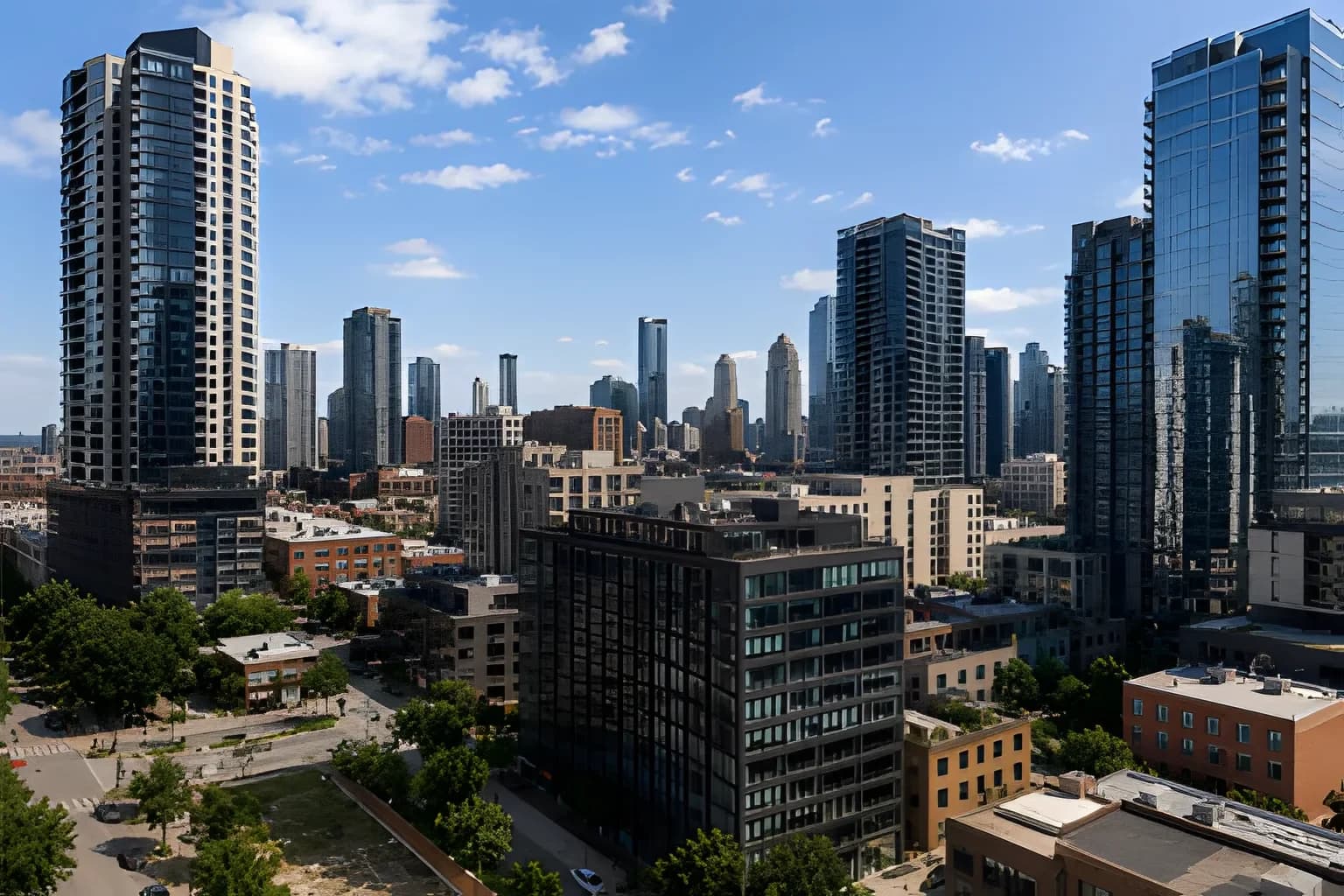
Toggle each pair to inspect the source and edited view. The After in both pairs is a confirmed PixMender API job result. The city example documents a 384 × 256 to 1536 × 1024 upscaling run. These are real API results, not controlled quality benchmarks.

Start in the browser for a single repair or use the same processing model through the API for repeatable product workflows.
Choose JPEG, PNG, WebP, AVIF, GIF, HEIC or HEIF. The current size limit is shown in the upload area.
Remove an object, text, logo or watermark; restore damage; reduce noise; sharpen blur; or upscale the result. API jobs can run several operations in a defined order.
Processing runs as an asynchronous job. When it finishes, check the result and download it before temporary files are removed.
Remove distracting props, labels or background objects so a product remains the clear subject of the image.
Repair visible damage, reduce noise and sharpen soft details before saving a larger, easier-to-share version.
Clean text and visual clutter, then upscale a finished result for consistent listings and catalog workflows.
Submit ordered operations through the API, poll job status or receive a signed webhook when processing completes.
Original uploads, intermediate files and generated results are scheduled for deletion within 24 hours. API keys are stored as hashes, and signed URLs limit access to individual uploads and downloads.
The web tool accepts JPEG, PNG, WebP, AVIF, GIF, HEIC and HEIF. The current file size limit is shown in the upload area.
Standard operations cost one credit, upscale costs 0.5, and standalone optimization costs 0.1 and is free with another operation. Restore followed by upscale costs 1.5. Purchased credit packs do not expire.
Yes. The API supports uploads, ordered operations, asynchronous jobs, status polling and signed webhook events. See the public documentation for request and response examples.
Originals, intermediate files and results are temporary and scheduled for automatic deletion no later than 24 hours after processing.
Run asynchronous cleanup jobs, chain operations and receive results through webhooks.
POST /v1/images/processExplore the API →PixMender supports the optimize-only Tinify HTTP flow: Basic Auth upload to /shrink, the familiar response shape and a public result URL.